How to use the TvZapeo IPTV player
Adding your subscription, setting up the programme guide, watching a show again: everything you need to get started with the TvZapeo IPTV player, step by step.
TvZapeo is an IPTV player: the first thing to do is add your own subscription, purchased from the provider of your choice. Providers usually give you either an Xtream Codes login (a server address, a username and a password) or a link to an M3U playlist. Start with the section that matches what you received.
Adding an Xtream Codes login
Xtream Codes is a very common way to connect to an IPTV subscription. Instead of one long list, the app connects to your provider’s server using three details:
| Detail | What it looks like |
|---|---|
| Server address | http://example-server.com:8080 |
| Username | the username given by your provider |
| Password | the password given by your provider |
The advantage over an M3U playlist: TvZapeo neatly retrieves the channels, categories, movies, series and, if your provider offers them, the programme guide and Replay.
- Open TvZapeo and choose “Add my provider”.
- The easiest way: scan the QR code shown on the TV with your phone (on the same Wi-Fi) and fill in the form with the phone keyboard. You can also type everything with the remote.
- Enter the server address, username and password exactly as you received them.
- Confirm: TvZapeo checks the connection and shows “Xtream connection validated”.
- Your channels, movies and series load. The first load can take a few seconds.
Tip: are your login details in a text file? TvZapeo can read them from a text file too. And once the app is installed, the TvZapeo remote on your smartphone saves you typing searches with the arrow keys.
If it does not work:
- “Xtream server missing” or address rejected: check that it starts with
http://orhttps://and includes the right port (the number after the colon). - “Xtream response not recognized”: the address does not lead to an Xtream server. Check it with your provider.
- Username or password rejected: watch out for capital letters, extra spaces and look-alike characters (l and I, 0 and O).
- Subscription expired: only your provider can renew it. TvZapeo does not sell subscriptions.
Got more than one subscription? You can add several providers to TvZapeo. Favourites and history are kept separately for each one, so you can switch between them without mixing everything up.
Adding an M3U playlist
An M3U playlist is a plain text file that starts with #EXTM3U and lists, line by line, the name of each channel and its address. Your provider gives it to you as a link, often ending in “.m3u” or “type=m3u”. TvZapeo works as an M3U player: it reads the link, sorts the channels into categories and presents them like real TV.
- Open TvZapeo and choose “Add my provider”.
- The easiest way: scan the QR code on the TV with your phone (on the same Wi-Fi), paste the link on the phone and it arrives on the TV. You can also type it with the remote.
- Instead of the Xtream fields, enter your M3U playlist link.
- Confirm: TvZapeo reads the playlist (“Reading M3U playlist…”) and then shows “M3U playlist validated”.
An M3U link is long and full of special characters, so copy it from your provider’s email straight on your phone rather than retyping it. If it does not work:
- “Invalid M3U address”: the link is incomplete. Copy all of it, with no space at the start or end.
- “The link does not return a recognized M3U playlist”: the link leads to a web page or an error, not a playlist. Ask your provider for the correct link.
- “M3U playlist empty or not recognised”: the playlist contains no playable channels, or the subscription has expired.
The programme guide (EPG)
The EPG (Electronic Programme Guide) tells you what is on each channel, at what time, with a summary. It is often published in XMLTV format, a file covering many channels over several days.
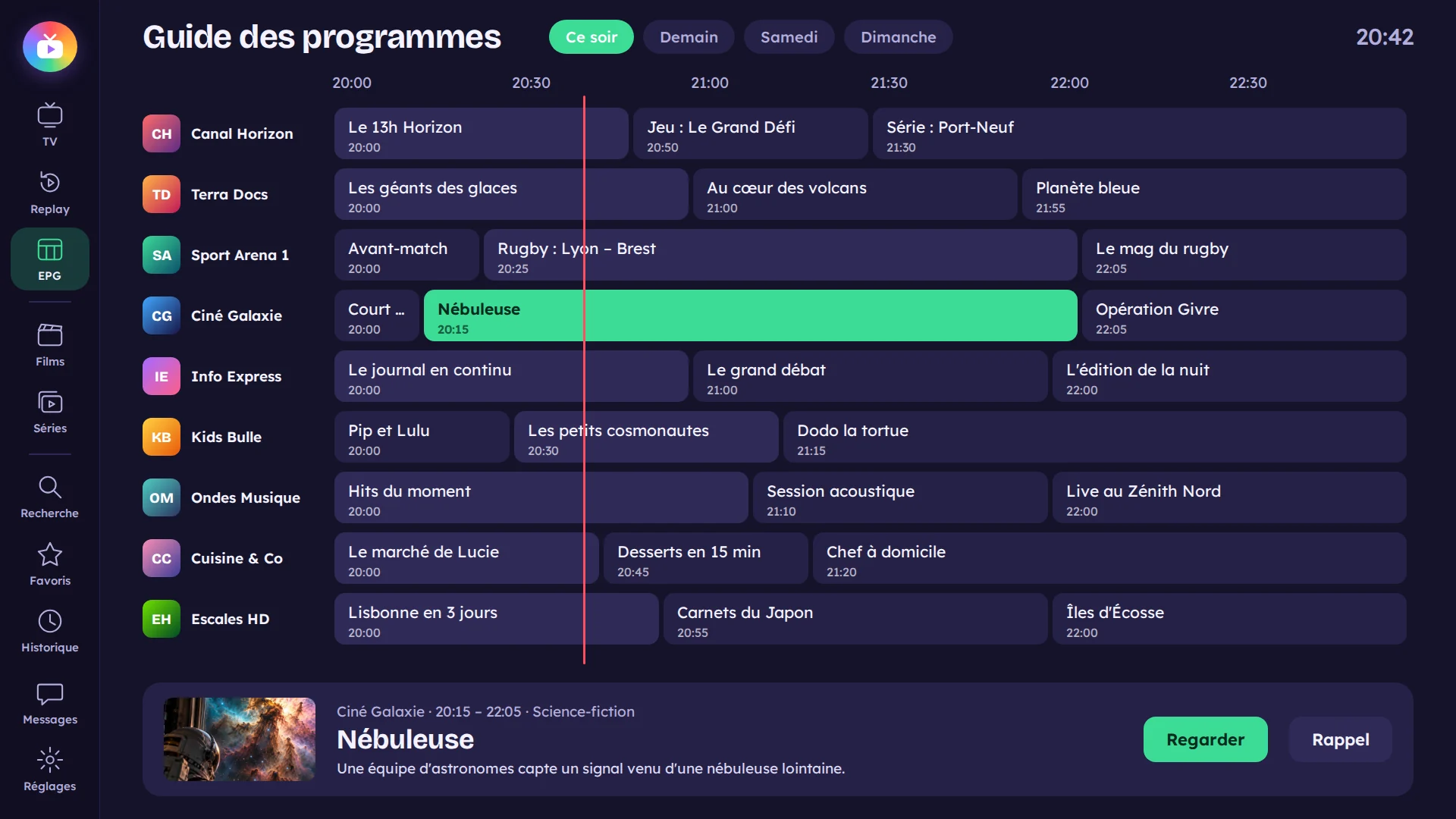
- Four hours of programmes on screen: channels on the left, times along the top, and the current time clearly marked.
- A preview: the selected channel keeps playing in a small window while you browse the grid.
- Programme details: channel, times, title, length, progress and summary.
- “Remind me” on an upcoming programme: at the right time, a window offers to play it.
- “Tonight”: a selection of what is on tonight, to suit your tastes.
TvZapeo combines several sources and keeps the most reliable one for each channel:
- Your own guides: an XMLTV file you add yourself (it takes priority over everything else).
- Public guides for your country, then for the countries you choose and those recognised in channel names (for example “UK” or “FR” in front of the name).
- Your provider’s guide, which fills in whatever is missing.
TvZapeo then links each channel in your subscription to its programmes: by its identifier, by its exact name, then by a similar name. When your provider has no guide for a channel, TvZapeo finds one elsewhere, all by itself. Guides are kept for a week.
A channel shows the wrong programmes?
- In the channel list, highlight the channel (or the programme in the guide grid) and hold OK.
- Choose “Wrong guide?”.
- TvZapeo looks for a better guide for the channel on its own and shows it to you: answer “That’s right” or “Wrong, next”. The “Where does this guide come from?” option shows which source is being used.
Adding your own XMLTV guide: if your provider or a specialist site gives you an XMLTV guide address (.xml, .xml.gz or .zip), choose “Add a guide with my phone”. Paste the address on your smartphone and it arrives on the TV. This personal guide takes priority over the country guides, without contacting your IPTV provider.
Watching programmes again with Replay
Replay (also called catch-up or timeshift) lets you watch a programme that has already aired. TvZapeo does not record anything: your provider keeps the programmes of certain channels for a few days, and TvZapeo displays and plays them.
- Open the Replay section (in orange).
- Choose the channel: only channels with Replay from your provider are listed.
- Choose the day.
- Choose the programme: time, length and genre are shown. Press OK and playback starts.
You can also start from the programme guide: OK on a past programme on a channel with Replay restarts it from the beginning.
During playback:
- Skip forward or back in the programme: playback resumes cleanly at the chosen point.
- Smooth playback: a buffer on the device’s storage prevents interruptions when the provider slows down.
- On live TV too: missed the beginning of the current programme? The “Start” button or the time bar takes you back, then you return to live.
Why does a channel have no Replay? Your provider does not offer Replay on that channel or on your plan; the programme is too old (how long it is kept depends on the provider, often a few days); or the channel has no programme guide, and without times the programme cannot be found.
Remember: TvZapeo provides no channels, movies or series. Your login details, playlist, guide and Replay all come from your own legally purchased subscription.
Frequently asked questions
Where do I find my Xtream Codes details?
In your provider’s welcome message (email or WhatsApp) or in your customer area on their site. TvZapeo does not supply them.
Xtream Codes or M3U: which should I choose?
If your provider offers both, go for Xtream Codes: categories, movies, series, the guide and Replay are retrieved more completely.
Are my login details shared?
No. Your details stay on your device and are only used to connect to your provider.
Can I load an M3U file from a USB stick?
TvZapeo is designed for the playlist link your provider gives you: that is what keeps your channels up to date automatically.
Why do some channels have no programme guide?
No source knows them, or their name is too different. On a cell with no guide, OK offers to search for one; you can also add an XMLTV guide that includes these channels.
The guide is an hour out.
Check the time zone and clock in your device’s Android settings: TvZapeo shows the guide in the device’s local time.
Does TvZapeo record programmes?
No. Replay comes from your provider; TvZapeo displays and plays what they make available.
Does Replay work with an M3U playlist?
Yes, if the playlist and the provider support it, but it is usually more complete with an Xtream Codes login.
Ready to make your TV simpler?
Install TvZapeo and enjoy a free week, no credit card needed.